
A few months ago, I spent nearly an entire afternoon searching for a buried PDF inside a maze of project folders. I knew the content I needed was in there somewhere… but I couldn’t remember which file, which client, or which version. Classic.
Fast forward to today, and we now have the File Search Tool in Gemini API — a feature that feels like having a superpowered assistant who knows exactly where everything is stored and what’s inside it. No more digging through folders. No more guessing. Just clear answers, quickly.
In this post, we’ll break down what the File Search Tool does, why it’s a game-changer for developers and teams, and how to start using it with practical examples, tips, and FAQs.
What Is the File Search Tool in Gemini API?
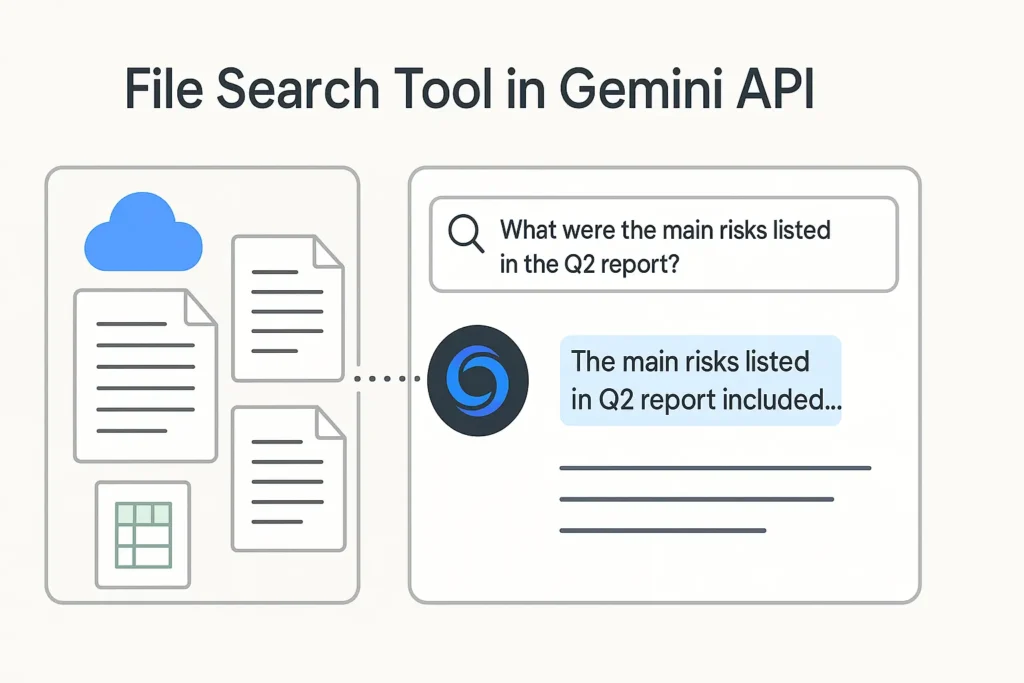
The File Search Tool in Gemini API capability that lets you:
- Upload documents, PDFs, images, spreadsheets, or entire datasets
- Ask questions or search for information inside those files
- Retrieve semantic, intelligent answers — not just keyword matching
Think of it as giving Gemini “memory” about your documents so it can reference them on demand, almost like plugging your own knowledge base into the model.
This makes it incredibly useful for:
- Documentation-heavy workflows
- Customer support knowledge bases
- Legal, medical, or financial document analysis
- RAG (Retrieval-Augmented Generation) apps
- Search interfaces for internal company data
Why It Matters: Key Benefits
1. Saves Massive Amounts of Time
Stop manually scanning PDFs or scrolling through folders. One API call can answer a question across hundreds of documents.
2. Smarter Than Keyword Search
Gemini understands context.
Ask: “What were the main risks listed in the Q2 report?”
It will find them — even if the exact phrase “main risks” isn’t present.
3. Works With Multiple File Types
PDFs, DOCX, CSVs, images with text, and more.
4. Easy to Integrate Into Apps
Build chatbots, search tools, or automated document review systems in minutes.
5. Secure + Controlled Context
You decide which files Gemini can access, giving you fine-grained control over your data environment.
How the File Search Tool Works (Simple Explanation)
Here’s the basic workflow:
- Upload files to Gemini’s file storage.
- Index or reference them as part of a “corpus” or searchable collection.
- Send a query through the File Search Tool.
- Gemini retrieves the most relevant passages.
- It generates a helpful, context-aware answer.
Behind the scenes, Gemini uses embedding vectors and retrieval algorithms to match your query with file content — far more advanced than typical search.
Step-by-Step: How to Use File Search in the Gemini API
Step 1. Upload Your File
from google import genai

client = genai.Client()

file = client.files.upload(
    file="documents/financial_report.pdf",
    display_name="Q2_Report"
)
print(file.name, file.uri)
Step 2. Create a Search Corpus (Optional but recommended)
corpus = client.corpora.create(
    display_name="financial_docs"
)
corpus_id = corpus.name
Step 3. Add File to the Corpus
client.corpora.documents.create(
    corpus_id=corpus_id,
    file_id=file.name
)
Step 4. Ask a Question
response = client.models.generate(
    model="gemini-1.5-pro",
    contents="What were the key risks mentioned in the Q2 financial report?",
    tools=[{
        "file_search": {
            "corpus": [corpus_id]
        }
    }]
)

print(response.text)
Step 5. Use the Results in Your App
You’ll get:
- Relevant excerpts
- Summaries
- Citations
- Ready-to-use structured data
Perfect for dashboards, chatbots, and automation.
Real-World Use Cases
1. Customer Support Automation
Upload product manuals → let users ask natural questions.
“Why is my device blinking red?”
2. Legal Document Review
Search across contracts, highlight clauses, compare versions.
3. Internal Knowledge Bases
Replace SharePoint chaos with smart AI search.
4. Research & Academia
Let students query textbooks and PDFs conversationally.
5. Finance & Reporting
Instantly extract insights from earnings reports, forecasts, and spreadsheets.
Tools You’ll Need
- Gemini API access
- Google Cloud project (if using GCP integration)
- Basic Python or JavaScript setup
- Documents you want to search
Optional:
- A vector database (if creating custom hybrid pipelines)
- A frontend framework for chat UI
Common Mistakes to Avoid
Uploading low-quality scans
If your PDFs are images, use OCR preprocessing for best results.
Forgetting to manage file access
Always store sensitive docs securely and configure permissions.
Overloading queries
Ask clear questions.
Instead of:
“Explain everything in all my files?”
Try:
“Summarize the main compliance requirements from the uploaded documents.”
Not batching large document sets
Use corpora to organize, otherwise retrieval may become inefficient.
File Search vs. Regular Gemini Chat: What’s the Difference?
| Feature | Regular Chat | File Search Tool |
|---|---|---|
| Knows your files? | ❌ No | ✅ Yes |
| Context control | Low | High |
| Ideal for | General tasks | RAG, document apps |
| Accuracy on file content | Medium | Very High |
If you’re building anything that relies on your documents, File Search is the better choice — every time.
Final Takeaway
The File Search Tool in the Gemini API transforms how we interact with information. It turns messy folders and long PDFs into instantly accessible knowledge — perfect for developers, teams, and anyone building AI-powered workflows.
If you’ve ever wished for a smart assistant who actually knows your files, this is it.
FAQs
Can I upload multiple files?
Yes — entire corpora can be indexed and searched together.
Does Gemini store my files permanently?
Files are stored according to your project’s configuration. You control retention and deletion.
Can I use this in production apps?
Absolutely. The API is designed for enterprise-grade workloads.
Is File Search the same as vector search?
It uses embeddings under the hood, but you don’t have to manage a separate vector database unless you want to.
Is this suitable for non-developers?
If you build a UI around it, yes. The underlying API is developer-friendl

Adrian Cole is a technology researcher and AI content specialist with more than seven years of experience studying automation, machine learning models, and digital innovation. He has worked with multiple tech startups as a consultant, helping them adopt smarter tools and build data-driven systems. Adrian writes simple, clear, and practical explanations of complex tech topics so readers can easily understand the future of AI.





Just started exploring sports betting and this platform made the learning curve so much easier to handle. The odds are competitive and the live streaming feature lets me watch games while placing my wagers. I appreciate how they explain everything clearly for beginners. Will definitely be sticking around for the long run. bd111bte
I have been testing different betting platforms for months and finally found a trustworthy one. The deposit process is super smooth and my withdrawals always reach my account within minutes. Highly recommend checking out this link for a great start. 7dewalogin
Downloaded the app last weekend and it completely changed how I enjoy my free time. The interface is super clean and I never had to dig through confusing menus or read tiny terms. Security checks feel solid and I can actually relax while playing. Jump in at gun88app